
Quick answer:
You can check your collar’s version from the printed markings on the device or from the IMEI sticker attached to it.
Information on the collar casing
Device version number
The first marking shows the collar model. In this example, it is G400FI, followed by the collar version, which in this case is v02.16.
IMEI code (serial number)
The long number starting with 35xxxxx located directly below the barcode is your device’s IMEI code (serial number).
If the device does not have a sticker or it has worn off, the IMEI code may be printed directly on the collar casing.
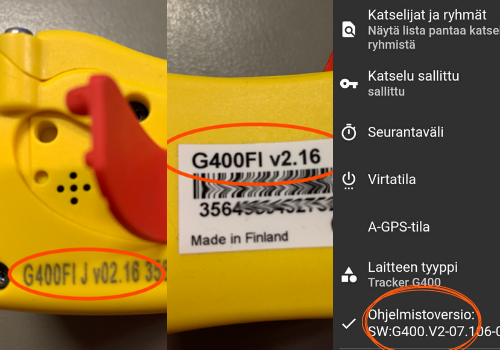
Information shown in the WeHunt app (Software version, IMEI and Device ID)
Alternatively, you can check the collar version in the WeHunt app under the device information in the Software version section.
Follow these steps:
Open the WeHunt app
In the map view, tap the button in the lower right corner
(or swipe from the left edge of the screen toward the center)Select “Devices”
Tap the name of the tracking device (not the icon)
The device’s “Settings” menu will open
Scroll down until you find “Software version”
You can find the Device ID and IMEI above under “Device ID” and “IMEI”